CrowdSec Setup
Step 1: Download CrowdSec Software
On the Windows Server or Windows 11 VM, navigate to CrowdSec and sign up for a free account
Once logged in, follow along with below images to download the CrowdSec file on both Windows Sever and Windows 11 VM
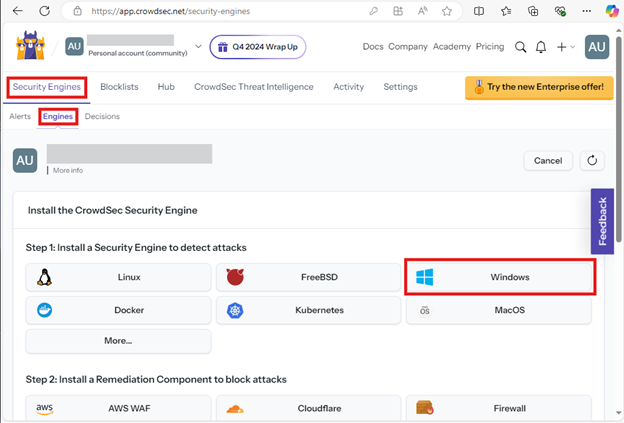
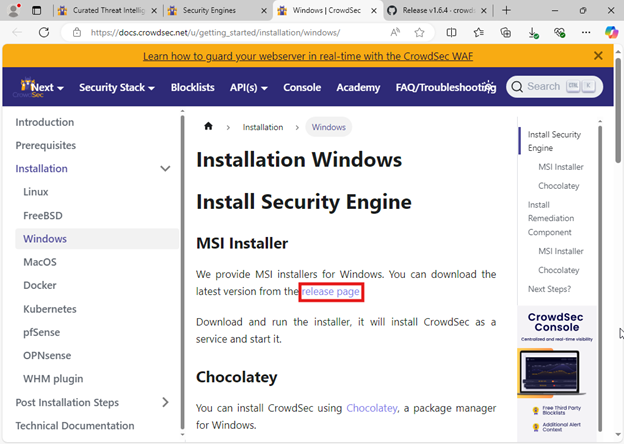
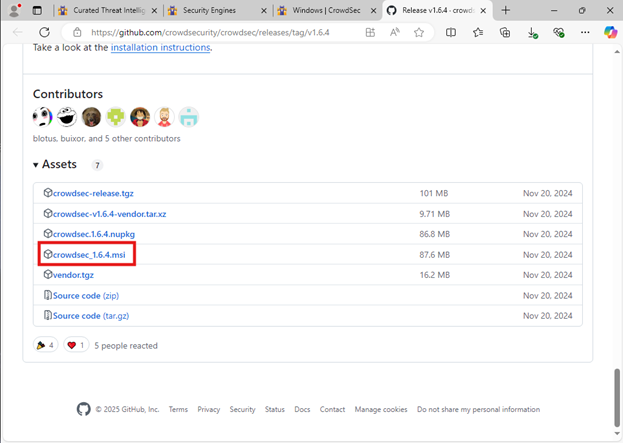
Step 2: Install CrowdSec
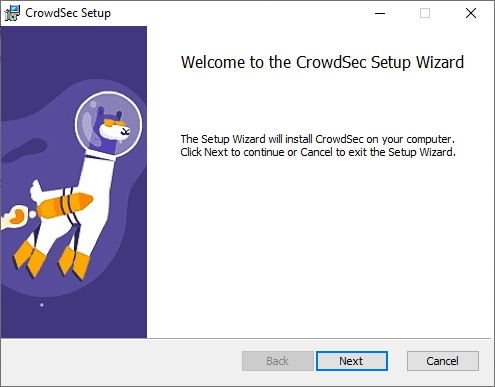
Launch CrowdSec file and follow installation wizard
After installation is finished, open Powershell as Administrator and navigate to the CrowdSec folder
Enter command .\cscli.exe collections install crowdsecurity/windows-firewall
Once the crowdsecurity/windows-firewall is installed, open the acquis.yaml file in the CrowdSec config folder
Add the following lines to the end of the .yaml file, then reboot
—
filenames:
- C:\Windows\System32\LogFiles\Firewall\pfirewall.log
labels:
type: windows-firewall

Step 3: Enroll VMs to CrowdSec Account
After the reboot, open Powershell as Administrator
Change directory to the CrowdSec folder
Run command cscli console enroll -e context (enrollment token from CrowdSec site)
Once enrollment is complete, refresh CrowdSec website to see the newly added device